•The logger object is useful for a variety of messages to document daily deployment, messages, and as a debugging tool.
•Custom messages can be sent to the logger by scripting
•The logger is also integrated with products running the CanBus Protocol.
•The Logger Does not log to the vertex console.
•Logs can be exported to a data table for further use, e.g. creating a proof of play report to your advertising customers.
Utilizing the Logger
Go to MAIN MENU CREATE > Tools and select Logger to add it to your project.
Access the Logger Editor window via the new item's context menu in Project Explorer.
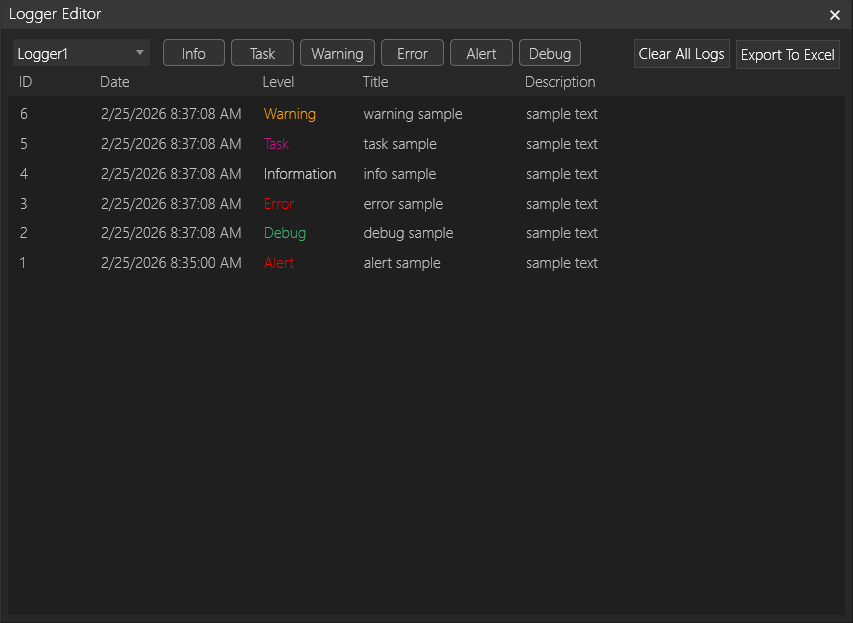
The logger editor will show all messages received and can be filtered by level.
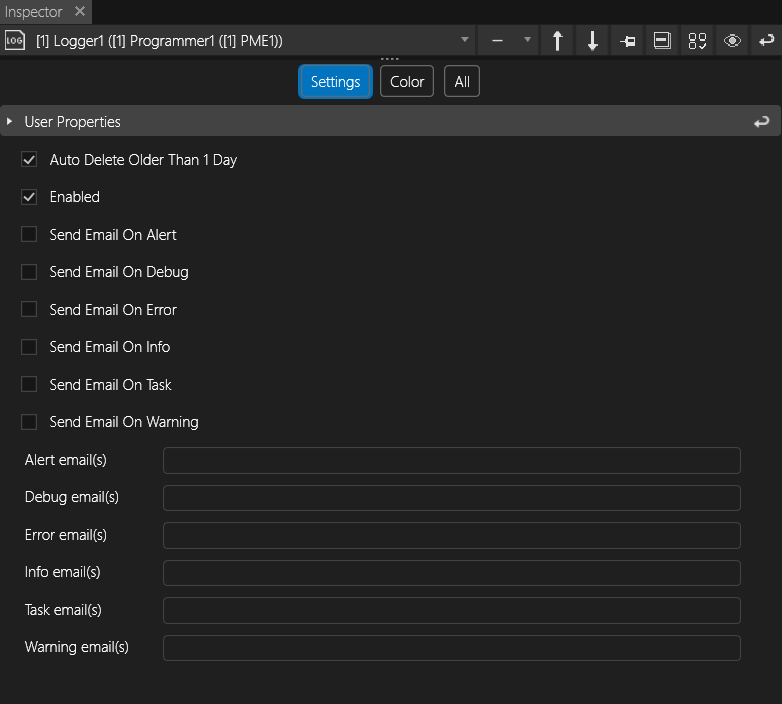
In the Inspector, auto deleting of log entries for long running projects can be enabled.
For each type of logger message, an email can be sent to notify necessary people. Separate multiple email addresses with a comma.
Adding Log Entries via Vertex Script
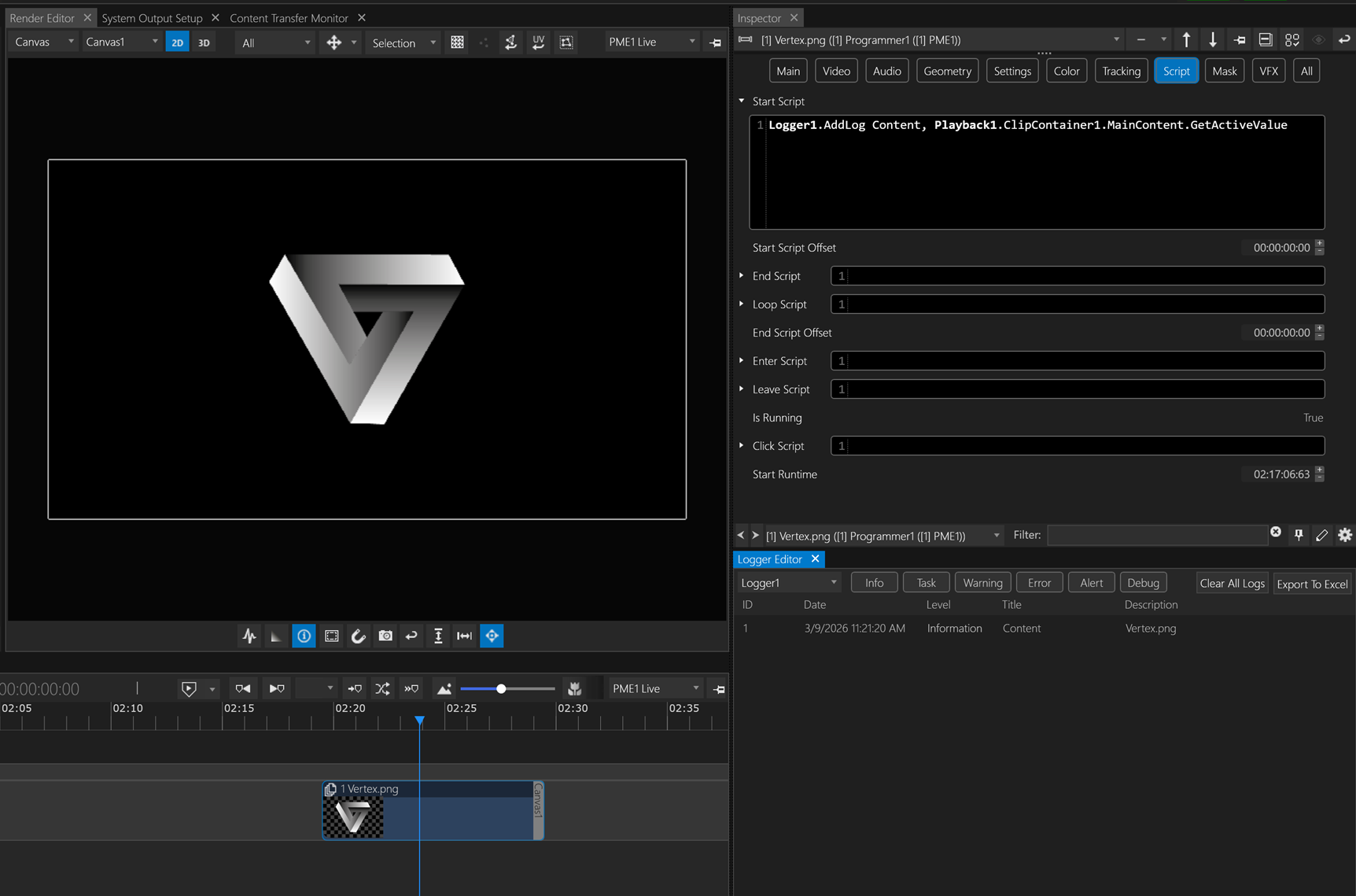
The screen shot above shows a use case example where the name of a content asset is logged at the time of its playback.
This is achieved by accessing Logger1 via the Clip Container's Start Script, giving it the Title Content and logging the value (name) of the active content.
Logger1.AddLog Content, Playback1.ClipContainer1.MainContent.GetActiveValue
The Vertex script syntax for adding Info logs is therefore:
Logger1.AddLog Title, Description
The parameter Description may be used to call any project items value. It also allows the use of variables and its associated complex logic.
The same syntax applies for adding various logs such as Task, Warning, Error, Alert and Debug logs:
Logger1.AddTask Title, Description
Logger1.AddWarning Title, Description
Logger1.AddError Title, Description
Logger1.AddAlert Title, Description
Logger1.AddDebug Title, Description