Data Table provides a powerful, runtime-accessible data system for storing, querying, and manipulating tabular data within a VERTEX project. It acts as a central data source that can drive logic, control content, and integrate with external data inputs.
•Data Management: Create, define and manage datasets using rows and columns, with support for mixed data types and index-based access in scripts.
•Runtime Query and Transformation: Perform built-in operations such as aggregation, sorting, and lookup directly within the Data Table, enabling data-driven logic without external processing.
•Live Data Editing and Mutability: Modify table data at runtime through scripts or UI interactions, allowing dynamic updates that immediately affect connected outputs.
•ControlView Integration: Bind a Data Table to a Control View Data Table control to enable real-time editing, sorting, and interaction from Control View and WebView interfaces.
•External Data Integration: Import, export, and populate data from sources such as Excel, JSON, XML, and Google Sheets to support live or pre-configured data workflows.
Use Cases
Live Data Integration Layer •Pull data from Google Sheets or JSON endpoints •Normalize and store in a Data Table •Drive visuals from updated values |
Runtime Data Transformation •Sort standings dynamically •Recalculate rankings •Filter or reorganize datasets on demand |
Interactive Data Exploration •Trigger different queries - e.g. with Control View buttons •Same dataset, multiple perspectives, e.g.: •totals - leaders -rankings |
Derived Data Generation •Compute aggregates (sum, avg, max, min) •Combine values across columns •Generate narrative strings |
Stateful Data Systems •Track user interactions •Store session-specific values •Build cumulative data (scores, counters, logs) |
External Data Synchronization •Periodically refresh from Google Sheets •Merge external data into runtime table •Use as a bridge between external systems and VERTEX |
Procedural Content Systems •Populate tables from JSON/XML •Generate content dynamically •Use as a backend for templated experiences |
Setup
Adding a Data Table to your project
•Go to MAIN MENU > CREATE > Interaction and choose Data Table.
•You have now created DataTable1. Rename it, if you like (shortcut F2 or via context menu).
•Access the Data Table Editor window via the item's context menu (right-click).
•The editor window is a basic interface allowing users to:
- select the source data table,
- create a new data table,
- add columns & rows,
- clear all cells
- import and export of Excel files
- rename columns via the context menu
- enter & edit data by clicking on cell
•for complex data table operations, please refer to scripting and Control View interaction
For Control View interaction:
1.Go to the desired ControlView and add a Data Table Control from either the context menu or by drag & drop from Library > Controls.
2.Go to the control's inspector and assign DataTable1 to the Data Table source field.
3.Both project items are now linked, enabling interaction and real-time data updates between the two.
Workflows
Data Table Driving Text Content
The following screenshot shows a setup in which tabular data can be interacted with. The immediate result is being sent to VERTEX' rendering pipeline in real time.
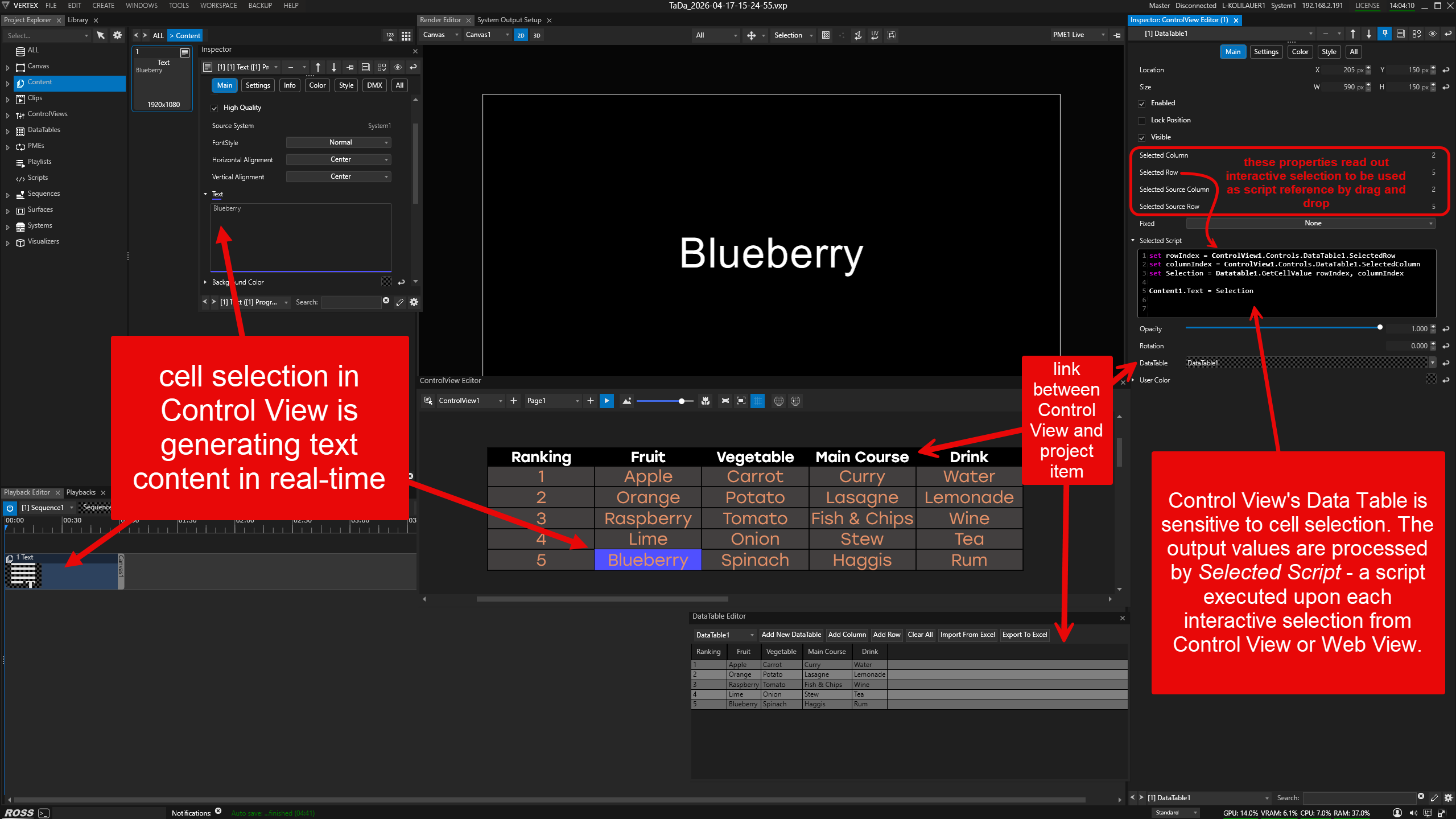
•Create these project items:
- Content > Text
- Data Table
- Control View > Data Table Control
•Link Data Table Control to DataTable1 (project item).
•Manual entering & editing data in cells is supported from both Control View and Data Table Editor window.
•Active selection in Control View is logged and can be used to extract data via script:
// setting local variables for selection
set rowIndex = ControlView1.Controls.DataTable1.SelectedRow
set columnIndex = ControlView1.Controls.DataTable1.SelectedColumn
set Selection = Datatable1.GetCellValue rowIndex, columnIndex
// passing local variable Selection into text content
Content1.Text = Selection
•Use the script above in Control View's DataTable control property called Selected Script, which is then triggered upon each selection from Control View or Web View.
•In the control's settings, the property Selection Mode has the options: None, Cells, Rows - select Cells.
Data Table Script Commands
AddCol
AddOrUpdateJson
AddRow
AddRowCsv
AddRowJson
Cells
Clear
ClearCell
ClearHeaders
Data
Delete
DeleteCol
DeleteEmptyRows
DeleteRow
DownloadGoogleSheet
ExportExcel FillFromJson
FillFromJsonWithHeaders
FillRandomIntValues
FillRandomValue
FindColld
FindColldByTitle
FindRowId
FindRowIdByColTitle
GetBottomValue
GetBottomValueOfValue
GetCellColRowValue
GetCellValue
GetColAvg
GetColCount
GetColFirst
GetColLast
GetColMax
GetColMin
GetColRangeAvg
GetColRangeMax
GetColRangeMin
GetColRangeSum
GetColSum
GetCustomAlias
GetGenericAlias
GetHeader
Getid
GetJson
GetJsonWithHeaders
GetLeftValue
GetLeftValueOfValue
GetName
GetRandomValue
GetRightValue
GetRightValueOfValue
GetRowAvg
GetRowCount
GetRowFirst
GetRowLast
GetRowMax
GetRowMin
GetRowRangeAvg
GetRowRangeMax
GetRowRangeMin
GetRowRangeSum
GetRowSum
GetTopValue
GetTopValueOfValue
ImportExcel
ImportXmlNodeAttributes
ImportXmlNodeltemsAttributes
InsertCol
InsertRow
ListMembers
RefreshSessionMembers
RefreshSessionMembersFromSystem
SetCellColRowValue
SetCellValue
SetColumnHeader
SetId
SetName
Settings
SortByColId
SortByColldDescending
SortByColTitle
SortByColTitleDescending
UserColor
UserProperties
VariabletXmlNodeAttributes
VariabletXmlNodeAttributesRaw
VariableXmlNodeItemsAttributes
VariableXmlNodeItemsAttributesRaw