•VERTEX can natively configure Elgato™ StreamDeck devices
•Multiple devices can be hosted on any of the machines in the session.
•StreamDeck buttons can be configured to trigger VERTEX scripts on both push and release. They also can display your project's content items or generative assets.
Adding a Stream Deck to Your Project
1.Connect the Stream Deck to your computer
 Do not launch Elgato's Stream Deck for Windows, Companion or any other applications accessing your Stream Deck.
VERTEX accesses your Stream Deck device natively. Avoid cross-talk from other applications - like overwritten button designs - by closing all other related applications beforehand.
Especially the Elgato "Stream Deck for Windows" application will terminate the connection of a Stream Deck is used with VERTEX. Please close this application before you start VERTEX.
2.Start VERTEX
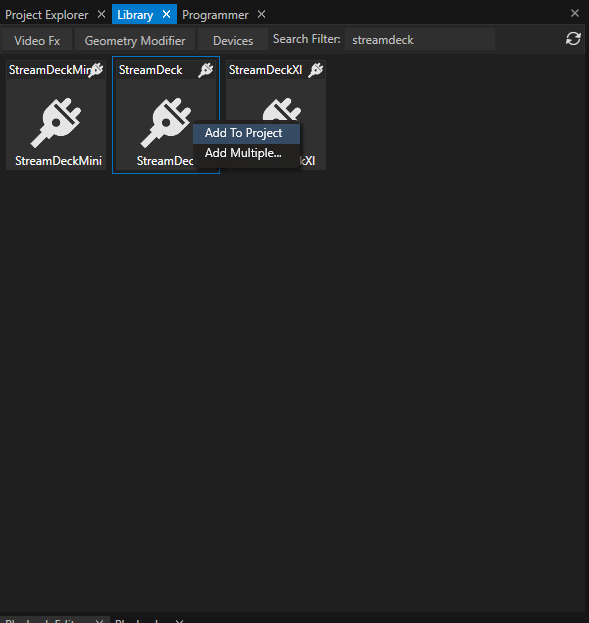
3.Go to Library > Devices and find your Stream Deck model
4.Add it to your Project either via the context menu or per double-click
Stream Deck Editor
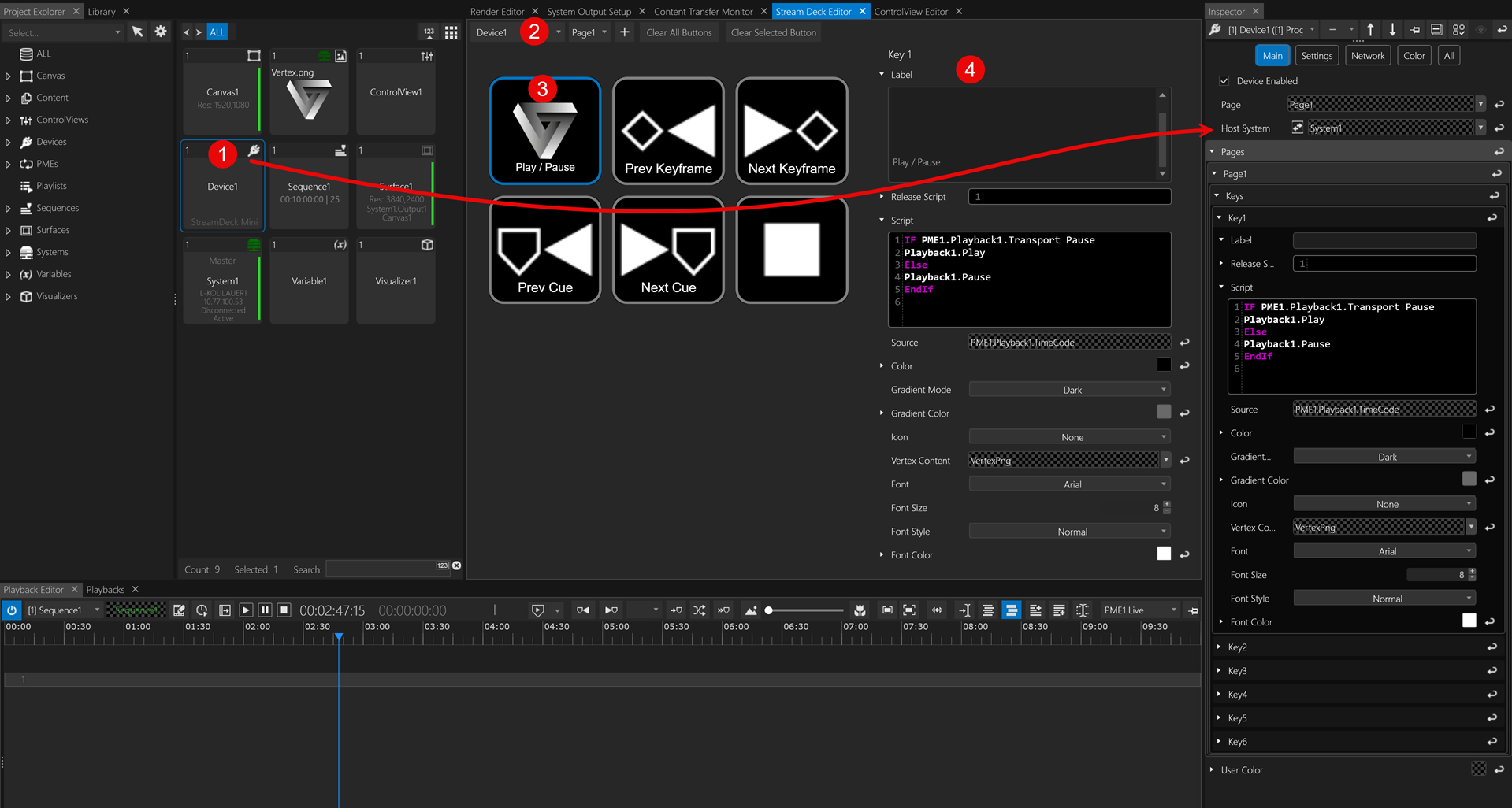
1.Select the StreamDeck Device and set the corresponding Host System. Use the CONNECT button, to reset the connection, if necessary.
Access the StreamDeck Editor window from the context menu of the item in Project Explorer
2.Stream Deck Editor top bar:
- drop-down menues to select the corresponding StreamDeck device and navigate its pages
- PLUS button to add more pages
- CLEAR buttons for selected or all StreamDeck buttons
3.Select a StreamDeck button to edit
4.The button's properties can be inspected and edited on the right side of the editor window. As you can see, they are on par with the regular Inspector.
- Once you're done with your Stream Deck's basic configuration, its actual Inspector window is no longer needed. Use it to inspect other project items for drag & drop actions between the two.
- For instance dragging the time code property of Playback1 to the Source field to display dynamic values on your Stream Deck.
- Or dragging properties into the script editor. The example above features a conditional script that turns the Stream Deck button play / pause toggle.
Settings Inspector
|
|
Page |
Navigation on connected device via a drop-down menu. |
|
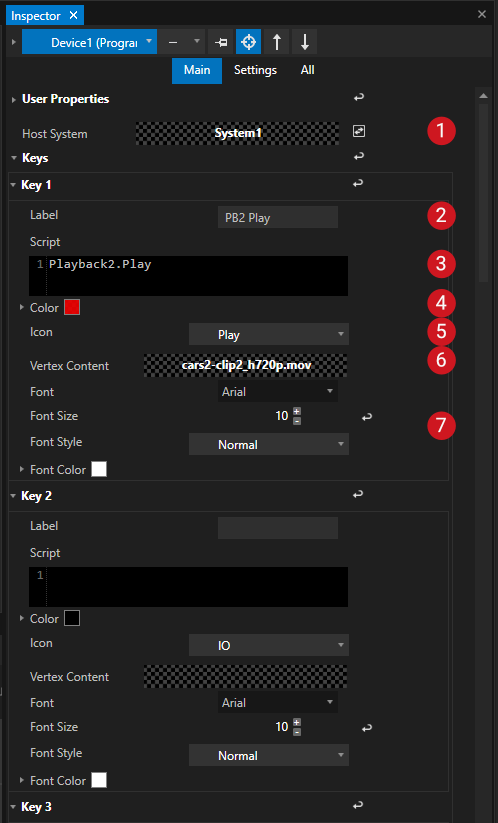
Host System |
Select the Host System your Stream Deck is connected to via USB. A click on the Reset button may be necessary after disconnecting the Stream Deck's USB cable or after changing the connected system. |
|
|
Pages and Keys Tree View |
Expand or collapse the inspector view of your Stream Deck's pages and keys. |
|
|
Label |
Displayed text on your Stream Deck buttons. Labels are in the foreground of all layered elements rendered on your Stream Deck |
|
|
Release Script Script |
Executes the provided script when the Stream Deck Button is released... ... or provide another script for when it's pressed. An example for a use case of press / release actions could be VERTEX' Shotbox. |
|
|
Source |
Allows the display of dynamic values or text on a Stream Deck's button. Drag & drop any project item's property value into this target field. |
|
|
Color Gradient |
Choose a background color or gradient for the Stream Deck button. |
|
|
Icon |
Select an icon as the button's mid-layer image from VERTEX's choices for the most common use cases. If your choice is not in the menu, you can use your project's content assets. Read on: |
|
|
Vertex Content |
Displays a thumbnail of a content item as the button's mid-layer image. |
|
|
Font Settings |
Sets font, size, style and color for the button's Label text |


 Button Count
The Stream Deck buttons are counted in rows, starting from top left
More Settings
•Select the "Settings"-Tab of the Inspector to set the brightness of the Stream Deck or to check its connection status.